
Install the app
Free, no account needed.
Android Get it on Google Play
Open Google Play and search for Vững Lái (or Vung Lai), or tap the button below on your phone. Requires Android 8.0 or later.
iPhone Get it on the App Store
Search for “Vững Lái” on the App Store, or tap the button below on the iPhone itself. Free; requires iOS 17 or later.
Using the TestFlight beta? Installing the App Store version replaces it, and from then on updates come through the App Store. You can then delete TestFlight if you don't use it.
Android Check with the Mount Assistant
- On the drive screen, tap Calibration, then MOUNT ASSISTANT.
- Adjust the mount until the checks turn green: Level, Aim (“Horizon is inside the green band”) and Hood and dash outline. The hood edge should sit below the white line.
- When you remount later, the phone gives a small buzz and shows “Back in place” once it is where it was. Tap DONE.
- Camera height (lens to road; about 1.2 m / 4 ft in a car): on the Calibration screen, pick the closest value. Once the app has measured it, tap USE THIS.
iPhone Check with the level pill
On the drive screen, the bottom-left pill shows the phone's level and pitch. Adjust the mount until its dot turns green (less than 2° of sideways tilt). The dashed line across the screen is the horizon guide: aim so the horizon sits close to it. You can hide it in Settings, “Mounting guide line”.
First launch
Five short intro pages and two permissions.
Android Steps
- As soon as the app opens, Android asks for Camera and Location. Choose While using the app and keep Precise location on: approximate location cannot tell your speed.
- Go through the 5 intro pages with NEXT. On the “Privacy” page, tap ALLOW if you haven't yet; the camera is required to continue.
- On the last page tap START. The VI | EN switch at the top changes the language.
- The region (Vietnam, Canada or USA) is guessed from your mobile network and SIM. Check it in Settings → DRIVING REGION.
iPhone Steps
- Go through the 5 intro pages with NEXT.
- On the “Privacy” page, tap ALLOW: allow the Camera, then Location while using the app for GPS speed.
- On “Where do you drive?”, pick VIETNAM, CANADA or USA, then tap START. You can change it later in Settings.
Denied the camera by mistake? The app shows OPEN SETTINGS. Turn on Camera for Vững Lái and come back.
Following distance by region
| Region | Rule | Units |
|---|---|---|
| Canada | 2-second rule | km/h, metres |
| United States | 3-second rule | mph, feet |
| Vietnam | Minimum gaps for dry roads from Circular 38/2024/TT-BGTVT. Below the speeds in its table, the app warns when you follow closer than 1 second. | km/h, metres |
Android also offers: a rule by seconds (1.5 / 1.8 / 2 / 3 s), your own table, and a Wet ×1.5 button on the drive screen to stretch the gap in rain.
Start driving
Set everything up before you move, then let the app work.
Android Start and stop
- Opening the app starts it: there is no start button. The screen stays on.
- Above 10 km/h the buttons hide after 6 seconds. Tap the screen to bring them back.
- Switch to Google Maps or go home: the app shrinks to a floating window and keeps warning. The Mini button does this right away.
- To exit, press Back twice.
iPhone Start and stop
- Turn the phone sideways, then tap the green ▶ to start and the red ■ to stop.
- Keep Vững Lái on screen for the whole drive: the iPhone turns the camera off when you switch apps, take a call or use Split View, and the app says it is paused. Come back and the warnings resume.
- ⚙ opens Settings (change them only while parked).
The first few minutes: self-calibration
The app learns how the phone sits while you drive straight, above 25 km/h (15 mph), on a road with clear lane lines. Meanwhile the gap card may show “Self-calibrating …%” or “Measuring camera height”. Just drive normally; the result is kept for later drives.
On the iPhone, the top-left pill goes from “Calibrating …%” to “Calibrated”.
If you see “Phone moved”, the mount has shifted since last time. Stop somewhere safe, check the clamp and drive on; the app recalibrates by itself.
Reading the screen
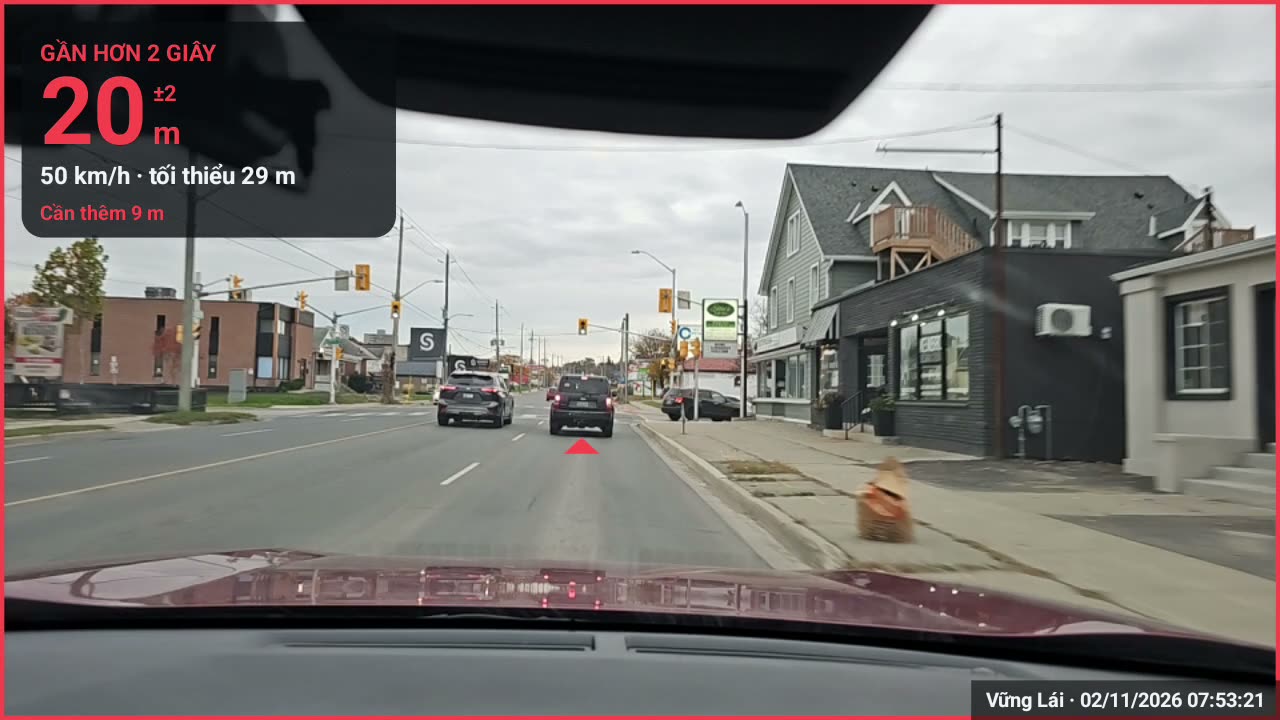
A glance at the gap card is enough. When it matters, the app speaks.
 1
2
3
4
5
6
Swipe sideways to see the whole picture →
- 1Headline, only when you need to act: “CLOSER THAN 2 S”, “TOO CLOSE”.
- 2Distance to the car ahead. The small ±2 is the estimate's margin.
- 3GPS speed and the minimum gap at that speed.
- 4Status line: “Need 9 m more”, “Safe gap”… While moving, tap the card to see it all for 6 seconds.
- 5Triangle under the car ahead: the car being measured, coloured by alert level.
- 6Screen frame in green, amber or red; pulsing red when it is serious.
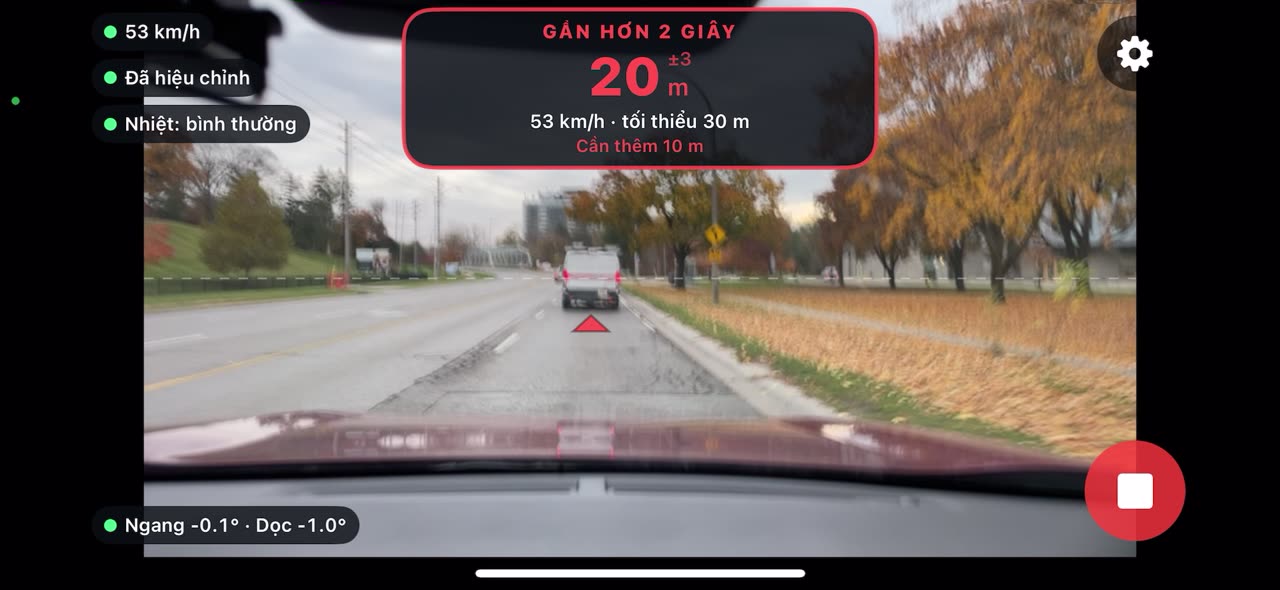 1
2
3
4
5
6
7
8
Swipe sideways to see the whole picture →
- 1Gap card: headline, distance (± margin), speed and minimum, what to do (“Need 10 m more”).
- 2GPS speed.
- 3Calibration: “Calibrating …%”, then “Calibrated”.
- 4Phone temperature: normal, warm, hot, too hot.
- 5Phone tilt: a green dot means the phone is level.
- 6Triangle under the car ahead: the car being measured.
- 7Settings.
- 8Stop (before a drive it is the green ▶).
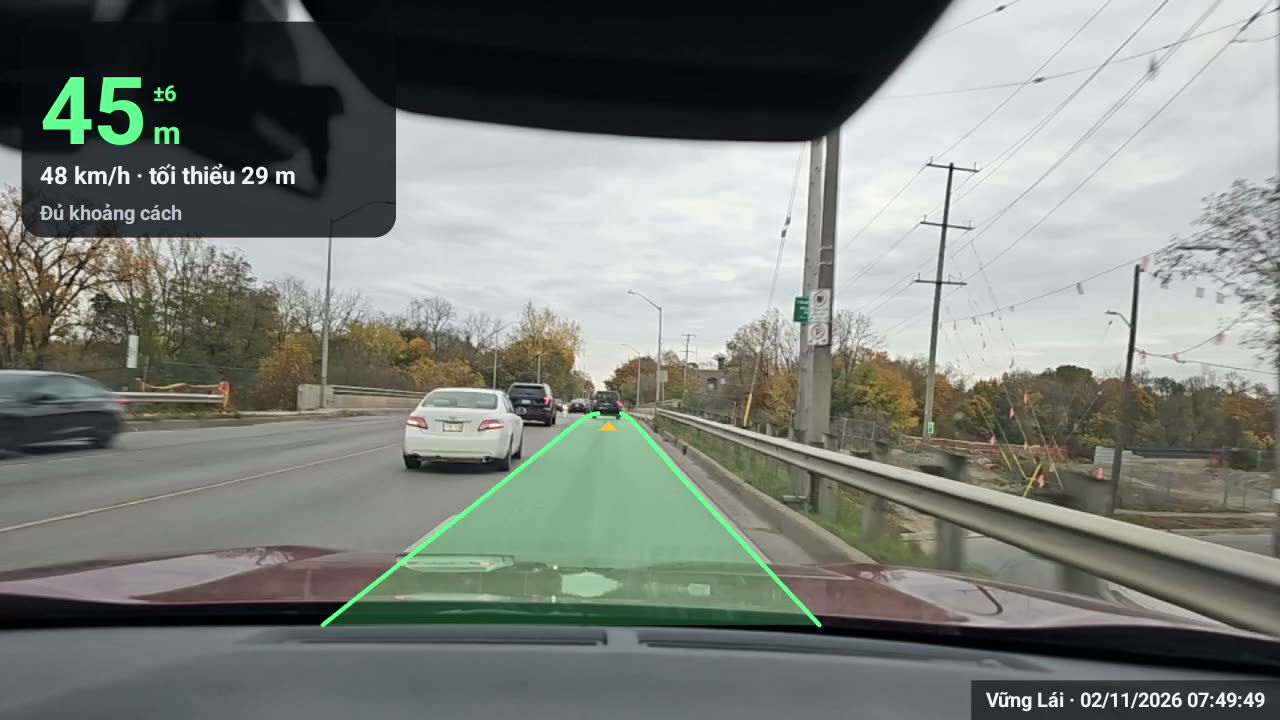
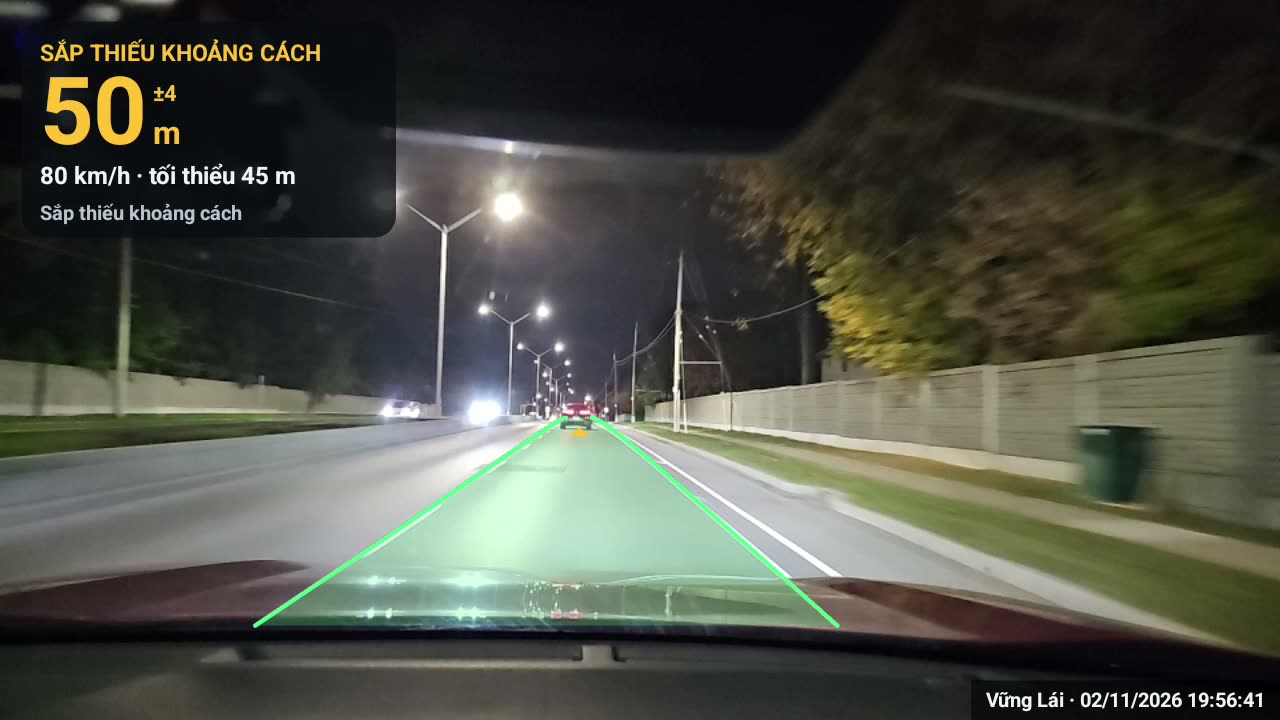
The three colours of the gap card
The pictures below are from Android. On the iPhone the card sits at the top centre, with the same colours and meaning.
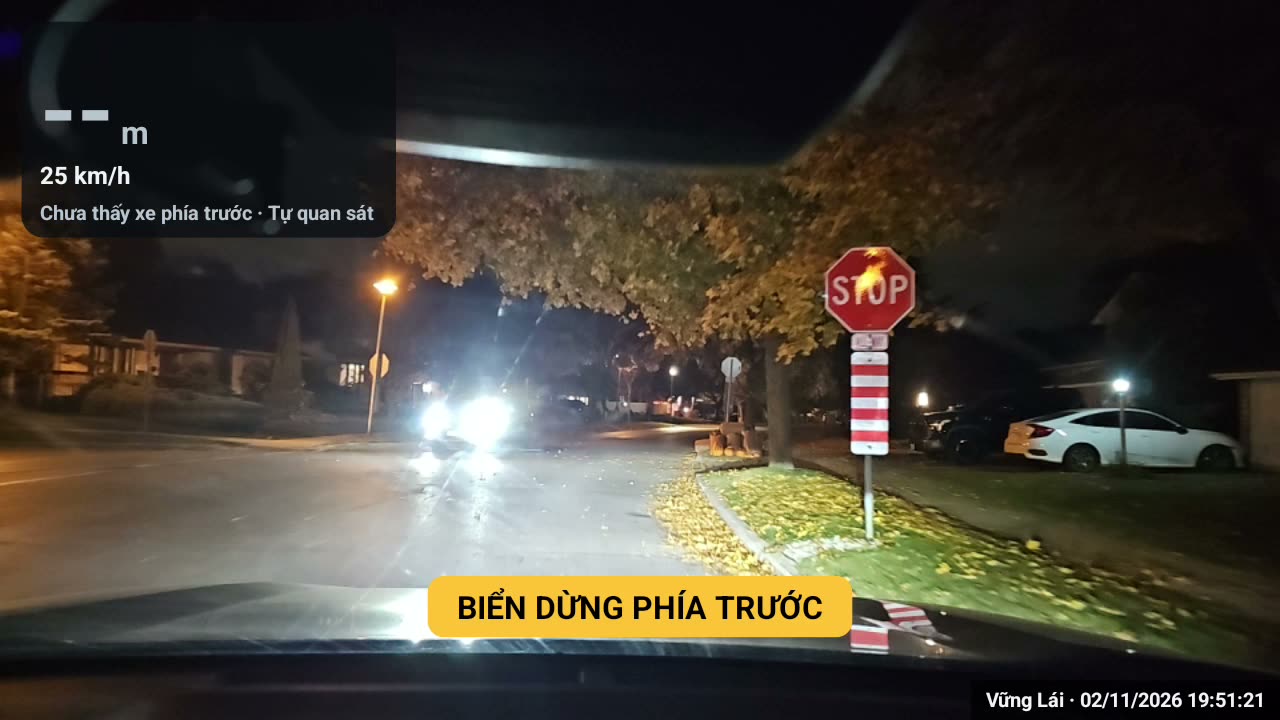
When the card shows “– – m”
The app is not sure enough to give a number. The status line says why; meanwhile watch the road yourself as usual:
- “No car ahead yet”, “Reacquiring the car”, “Reading uncertain”, “Lane not confirmed”, “Curve or slope”.
- “No speed yet”, “GPS unsteady”: wait for a GPS fix.
- “No fixed minimum”: your speed is outside the rule's range (usually when driving slowly).
Alert types
Tones, vibration and voice. Turn the sound on for the videos (spoken in Vietnamese; English voice when the app is in English).
- Pedestrian or rider ahead (from 5 km/h).“Watch for pedestrians or riders ahead.”
- Lane departure (from 25 km/h).“Lane departure.”
- Over the speed limit, from speed signs it reads (Vietnam region).“You are over the speed limit.”
- Too close: when driving slowly but under 1 second behind, the card shows “TOO CLOSE · Only … s behind”.
The same alert does not repeat non-stop: red at most every 5 seconds, amber every 10.
Settings worth knowing
Change them while parked.
| What | Android | iPhone |
|---|---|---|
| Region and gap rule | DRIVING REGION, GAP RULE | WHERE YOU DRIVE |
| Warn earlier or later | ALERT SENSITIVITY: Calm (fewest reminders), Balanced, Sensitive (earliest) | |
| Language | LANGUAGE: phone default, Tiếng Việt, English | LANGUAGE AND VOICE |
| Test the sound | TEST ALERT, VOLUME | TEST SOUND, “Mute alerts” |
| Voice style | VOICE: Standard, Short, Friendly, Cheerful, Custom; and what the voice calls you | Standard voice |
| Display | Day or night; mirror the HUD onto the windshield; guidance text while driving | Lane and car ahead; mounting guide line; technical figures |
| Trip history | The Trips button: time, distance, alerts, history | Not yet |
| Dashcam (experimental) | DASHCAM: use a DDPAI dashcam's picture over Wi-Fi instead of the phone camera (see Troubleshooting below) | Not yet |
Common problems
Tap a question to see the fix.
I can't hear the alerts (Android)
Vững Lái's voice and tones follow the phone's alarm volume, not the media volume. Go to Settings → VOLUME, raise the alarm volume, then tap TEST ALERT. Also check Do Not Disturb, and the car's volume if the phone is on the car's Bluetooth.
I can't hear the alerts (iPhone)
Open Vững Lái's Settings, make sure “Mute alerts” is off, tap TEST SOUND and raise the volume with the side buttons. If the iPhone is on the car's Bluetooth, check the car's volume.
The app says there is no Vietnamese voice
This only matters with the app in Vietnamese. In Vững Lái's Settings, tap DOWNLOAD VOICE and get the Vietnamese pack of Speech Services by Google (needs a connection, a few tens of MB). Until then the app still warns with tones and vibration.
I want a more natural voice
Download one of Apple's better voices: Settings › Accessibility › Spoken Content › Voices, pick the language and download an “Enhanced” or “Premium” voice. Vững Lái's Settings show the name of the voice in use.
Does it work on an iPad?
Vững Lái is made for the iPhone. An iPad can install it from the App Store, but it is not officially supported yet: a Wi-Fi-only iPad has no GPS, so the app cannot know your speed to warn you, and a large iPad on the windshield blocks your view.
The card always shows “– – m” or “No speed yet”
Turn on Location and allow precise location; let the phone see the sky through the glass and wait a few tens of seconds after starting. If it says “No car ahead yet” with a car close by: clean the windshield, make sure the clamp is clear of the camera and the phone is not tilted too far down.
The distance looks wrong
Check that the glass is clean, the phone is level and firm, and a few minutes of self-calibration have passed. Far away, at night, in rain or on curves the margin grows; the ± number on the card shows it. This is an aid, not a measuring device.
What to do when the phone gets hot
The camera and the AI run all the time, so the phone gets warm. When it is too hot the app scales back its work and shows “Phone hot, load reduced”: it then checks the road less often, so cool the phone early. In our road and indoor tests, three things caused most of the heat:
- Sun shining on the phone, the biggest cause. Mount it out of direct sun, lower the sun visor, point the A/C at it.
- Screen recording heats the phone much faster. Record only when you need to.
- Charging while driving adds heat. If the battery will last the trip, unplug; if you must charge, use a normal cable and avoid fast and wireless charging.
Also: take off a thick case, and if the car has been parked in the sun, run the A/C for a moment before you start.
Using a dashcam instead of the phone camera (experimental)
From version 1.0.9, Vững Lái can use the picture of a DDPAI dashcam (tested with the MINI5) over the dashcam's own Wi-Fi. The phone no longer has to sit in front of the windshield; put it wherever is easy to see.
- Connect: Settings → DASHCAM, turn the switch on, type the camera's Wi-Fi name and password, tap SAVE AND CONNECT, and pick Connect when Android asks. The phone keeps mobile data for maps and music.
- Mounting: aim the camera straight down the road, level, with as little hood as possible. Mount it against the glass where the sun does not hit the lens directly; dirty glass or strong sun causes glare, and far cars are then seen later.
- Sharpness: the live Wi-Fi picture is smaller than the dashcam's own recording (MINI5: 1280×720), so distances to far cars are less accurate than with the phone camera. Close cars are measured well.
- Each drive: the app needs a few minutes of driving to learn the camera's angle; the distance card appears once it has. Don't turn the camera mid-drive.
- Picture lost: the app beeps and says the dashcam picture is lost, the DDPAI chip turns red and the app reconnects by itself. If you tapped Cancel on Android's dialog, tap the red chip to try again.
- Engine off: the dashcam goes off first; after about 90 seconds standing still, the app says the dashcam is off and ends the drive, and the screen may sleep. Tap DRIVE AGAIN to carry on.
Using another brand (70mai, VIOFO, Vietmap…)? Message us the brand, model and the camera's Wi-Fi name (never the password) so we can add it next.
Using Google Maps at the same time
Yes. When you switch to Google Maps, Vững Lái shrinks to a floating window and keeps warning. If the window doesn't show: Android Settings → Apps → Vững Lái → turn on Picture-in-picture.
Navigation and Vững Lái at the same time on iPhone
Not yet: the iPhone only lets the camera run while Vững Lái is on screen. For navigation, use another device or the car's screen.
Sending a log for support
Tap Trips → SHARE TRIP DATA and send it by email. The package holds the log and settings, with no video and no location.
Still stuck? See the Help page or contact us below.
Ready for your first drive?
Free, no ads, no account. Camera images are processed on the phone only.
Need help? Email vudanmax@gmail.com · Zalo +84 962 485 716. Tell us your phone model and what happened.
Vững Lái is an assistance tool only. It is not a certified measuring device and does not control your vehicle; its estimates can be wrong, especially at night, in rain or fog, against the sun, or with a dirty windshield. The driver is always responsible for watching the road, keeping a safe distance and obeying traffic law. Set the app up before you drive, mount the phone where it does not block your view, and do not operate the phone while moving.